
Remove Person from Photo
Brush over unwanted people. Let AI fill the space.
 No account needed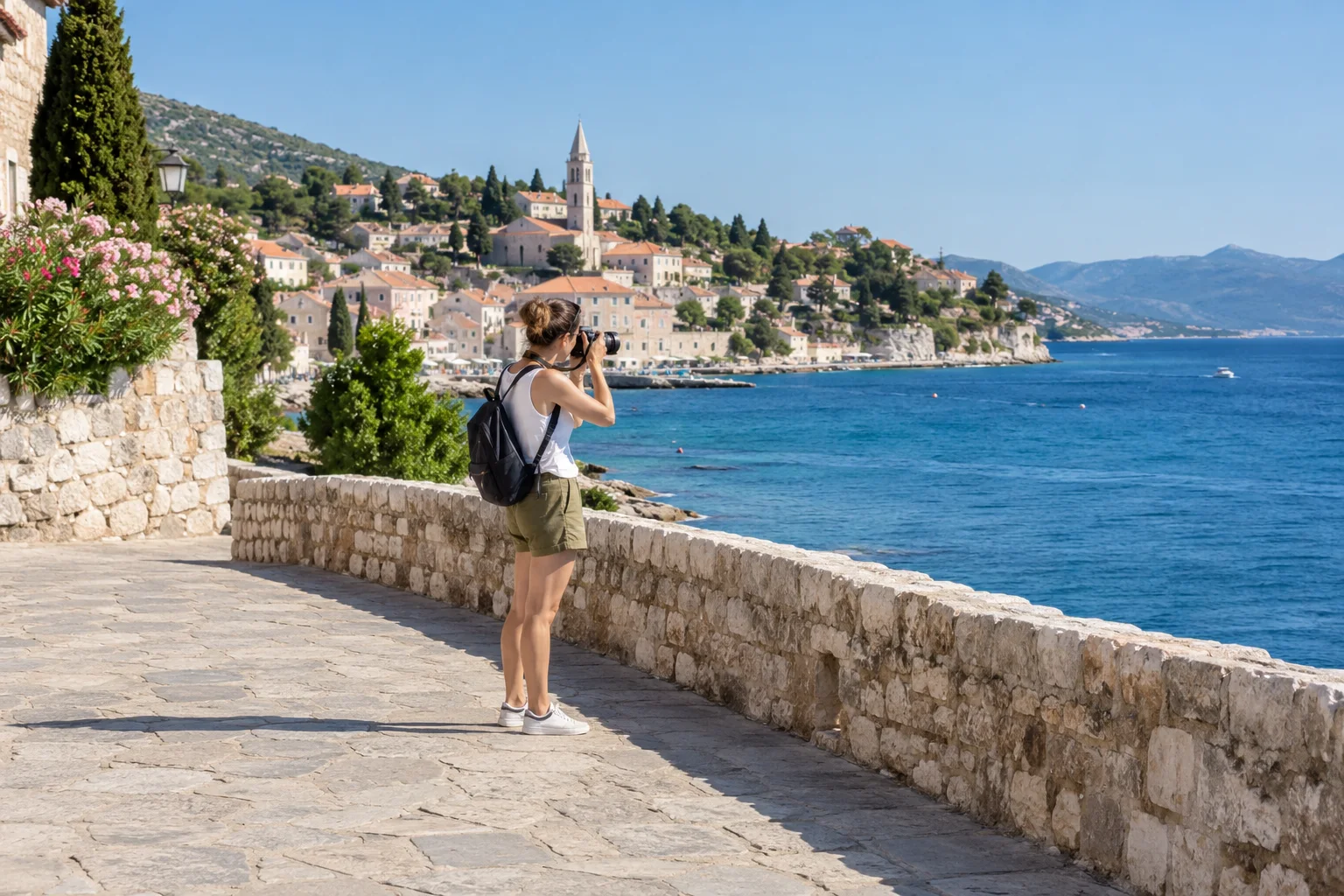
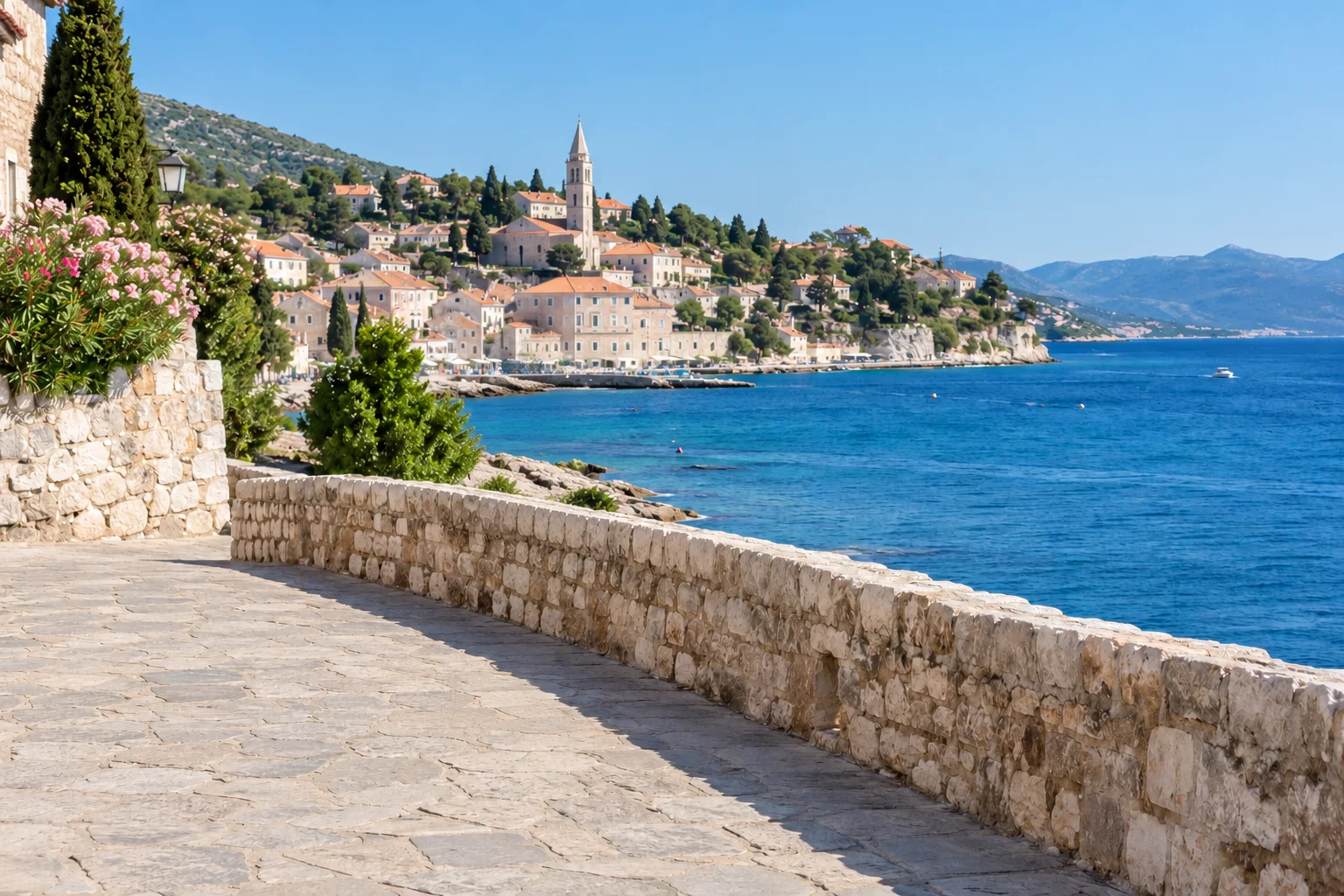
Paint over the person you want to remove.
Drop a new photo anywhere to replace this one. No need to delete it first.
Up to 3 AI attempts per network per day, shared by person and object removal. Downloads do not count.
Keep the moment. Lose the distraction.
A stranger at the edge of a travel photo should not decide how you frame the memory. Select the people you would like to remove, then ask AI to fill the marked area from the surrounding scene. You stay in control of the selection: there is no automatic face detection or one-click promise to remove every person.
The animation above uses AI-generated photo-style source and after-frame assets. It is a prepared demonstration, not a live result from this site's provider. Opening a photo and adjusting its selection happen locally. Clicking Remove submits the working image and selection for AI processing.
Three steps, with room to review
1. Upload your photo
Choose one JPG, PNG or WebP, or drop it into the editor. Start with a reasonably sharp photo in which the background around the unwanted person is visible. Your photo opens locally. Uploading into the editor does not start an AI request.
2. Brush over the person
Cover the full outline, including small gaps between arms and legs when those areas should be reconstructed. Adjust the brush size for the current working image. Use the eraser to protect nearby faces, hands or details. Undo, redo and clear selection let you revise before submitting.
3. Generate, compare and download
Remove submits one task to the configured provider. Compare the same frame before and after; check the result at its actual resolution. Download the latest successful PNG, or keep editing it. There is no automatic retry if processing fails.
A better selection starts with the background
A modest margin around the unwanted person can give the repair room to blend. Avoid sweeping over a large area just to make the outline easier. The server rejects an empty selection or one covering more than 90% of the image. That is a safety boundary, not a recommendation to select nearly the whole frame.
Use Move mode to reposition a zoomed image, then switch back to Brush before painting. Mobile uses the same explicit modes: one finger pans in Move mode and paints in Brush mode. Pinch gestures are not implemented. You can scroll the page outside the canvas.
Travel photos and background passersby
An isolated passerby against sand, water, sky or an evenly textured wall is easier to select than a person woven through railings or foliage. Nearby background still matters: do not assume the system knows how a hidden stair, handrail or sign should continue.
Shadows and reflections
Removing a person but leaving their shadow can make an edit look unfinished. Add an unwanted shadow or reflection to the same selection when it is clearly associated with that person. Keep the main subject's shadow intact. Review the repaired light and texture rather than checking only the original outline.
Groups and overlapping subjects
People in a group may cover one another. If an unwanted person overlaps a face, sleeve or hand you want to keep, those hidden details are not recoverable facts. Try a smaller selection, inspect closely, or choose a different source photo instead of expecting an accurate reconstruction.
What AI removal can — and cannot — do
This is background reconstruction, not a hidden-layer recovery tool. A result can contain seams, repeated textures, changed writing or altered unselected details. The final composite retains the original working-image pixels outside your selection. Repairs inside the selection still need careful review. We will not describe it as lossless, guaranteed or perfectly background-preserving.
Working images keep their original frame and aspect ratio, but photos larger than the working limit are reduced to a maximum side of 1,536 pixels. The editor shows your working and download dimensions. For AI processing, the photo and selection are fitted together onto a standard canvas. After processing, the padding is removed and the edited area is resampled to the working dimensions. Pixels outside your selection come from your working photo. Unexpected canvas sizes are rejected.
Clear limits, no account
The free allowance is 3 AI attempts per network per UTC day, shared across person removal and object removal. An admitted attempt can count even if the provider later fails. Shared networks may share the allowance. Editing, comparing, restoring a saved result and downloading do not use AI attempts.
AI availability also depends on the service-wide allowance. When it is unavailable, you can keep your selection, download an existing result or use local cropping.
Your photo, your choice to submit
File decoding, brush strokes and crop adjustments happen locally. Clicking Remove sends the working image and mask through our server to a third-party AI provider. We do not establish a public image library or intentionally log photo contents. Provider retention and commercial-use terms still need verification before launch; do not submit sensitive images on an unverified assumption of deletion.
Read the privacy details, editing terms and step-by-step guide. If the distraction is a bin, cable or sign rather than a person, use the object-removal workflow.
Questions before you start
Does this automatically detect people?
No. You choose the person by brushing over them. The tool does not detect faces or automatically erase everyone in a photo.
How many free attempts are available?
The free allowance is up to 3 admitted AI attempts per network IP per day, shared by person and object removal. It resets at 00:00 UTC. People sharing an IP may share the allowance. Requests rejected before admission do not count; provider failures after admission may count. The overall service allowance can pause free AI processing. AI processing is subject to service availability.
Will everything outside the selection stay unchanged?
The final composite copies the unselected pixels from your original working image. AI reconstructs the selected area, so inspect its edges and generated details. A large source photo may first be reduced to the displayed working dimensions.
Can it recover the real background behind a person?
No. AI predicts plausible content from visible context. It cannot reveal what was actually hidden in the original scene.
Should I include a person's shadow?
Include an unwanted shadow or reflection if it belongs to the person being removed. Leave shadows cast by subjects you want to keep outside the selection.
Which files can I use?
Choose one JPG, PNG or WebP image up to 10 MiB and 24 megapixels. The working image is orientation-normalized and reduced to a maximum side of 1,536 pixels when necessary. Its actual dimensions are shown before generation.
Are my photos uploaded immediately?
No. Opening, selecting and brushing a photo happen in your browser. Only clicking Remove submits the working image and mask to our server and configured third-party image provider. Local cropping does not upload your photo.
What happens if processing fails?
Your image and selection are kept when possible. There is no automatic paid retry. A request already admitted for generation may count against the daily allowance even if the provider fails or the result download times out.
Can I remove more than one person?
You can brush several people in one selection and submit one attempt. Large selections and overlapping subjects can make reconstruction less predictable. Keep enough nearby unselected background for context.
Can I continue editing a result?
After a valid result, editing starts from that result by default. Return to original starts a new selection on your original photo. Each new Remove action is a new potentially charged attempt. Downloads do not use AI attempts.
Will refreshing lose my latest result?
The latest successful edit can be saved in this browser for recovery, with a fixed 24-hour expiry. Expired records are removed on the next tool access. Browser storage can be cleared or unavailable, so download a copy. Start over or selecting a new photo clears the saved record.